
Claude Code
1. Add the server
Run this in your terminal:
claude mcp add --transport http kuberns https://mcp.kuberns.cloud/mcp2. Authenticate
Run /mcp to see your configured servers. Kuberns shows up needs authentication.
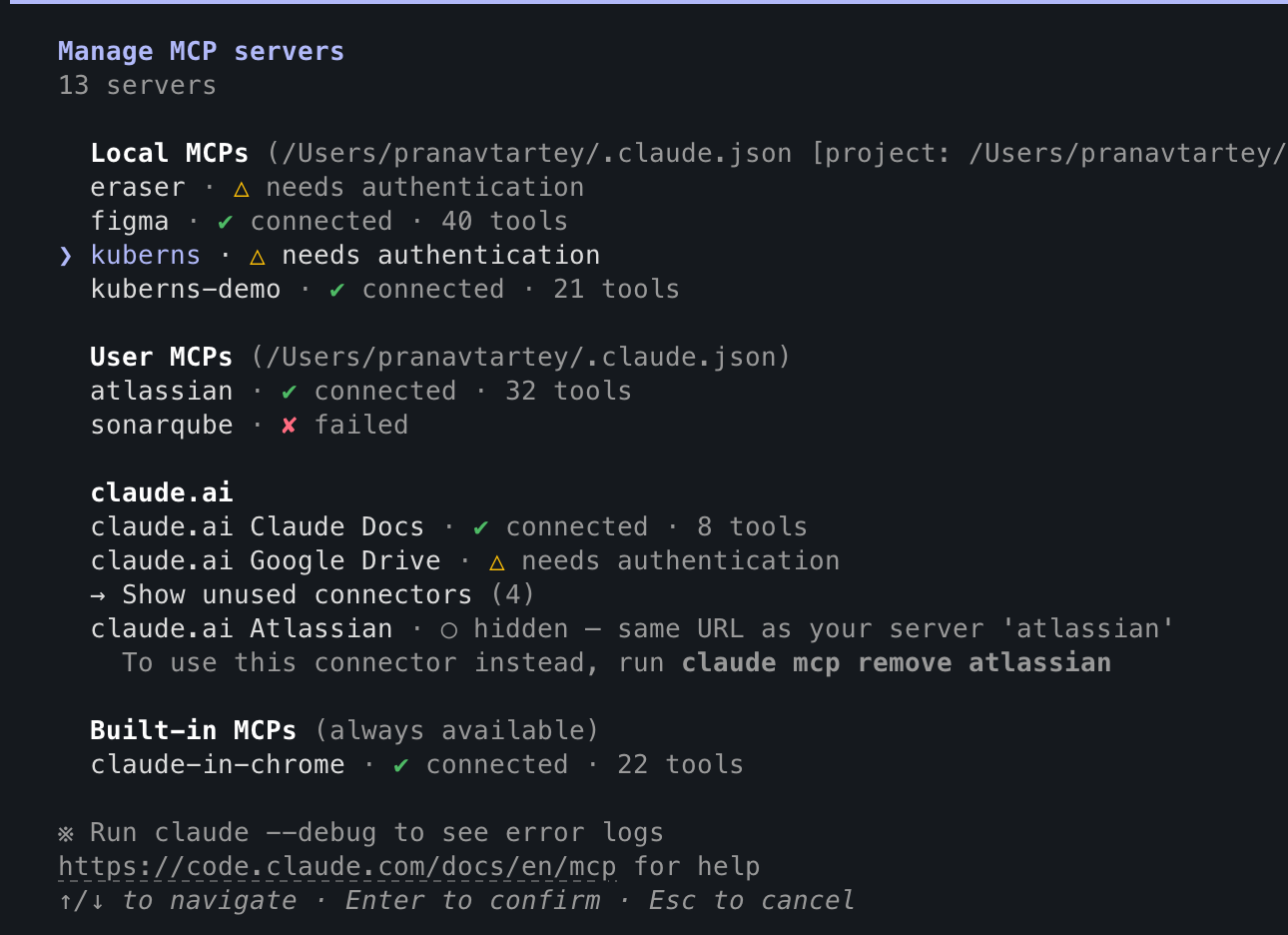
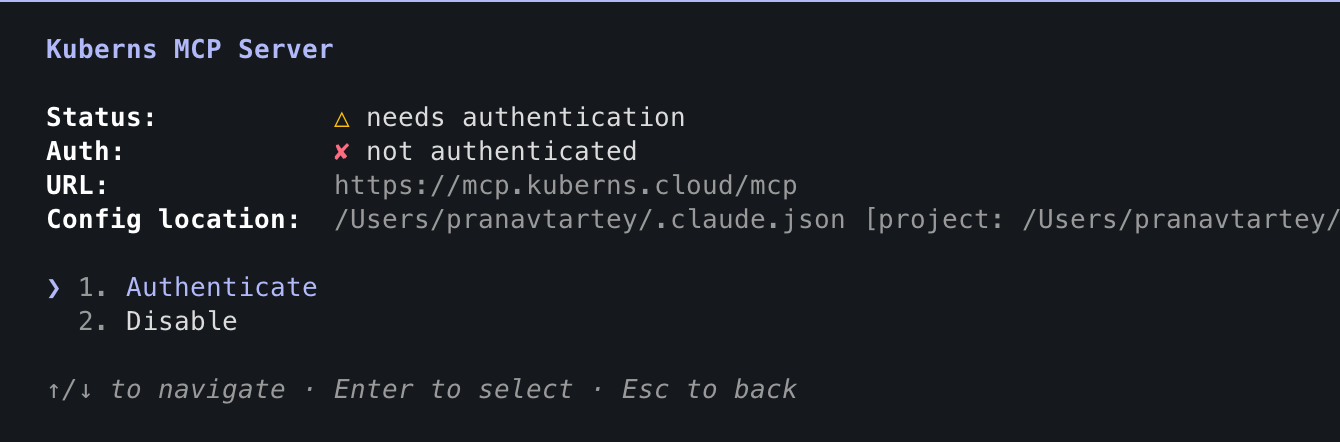
Select it to see its details, then choose Authenticate.
Your browser opens to Kuberns' consent screen.
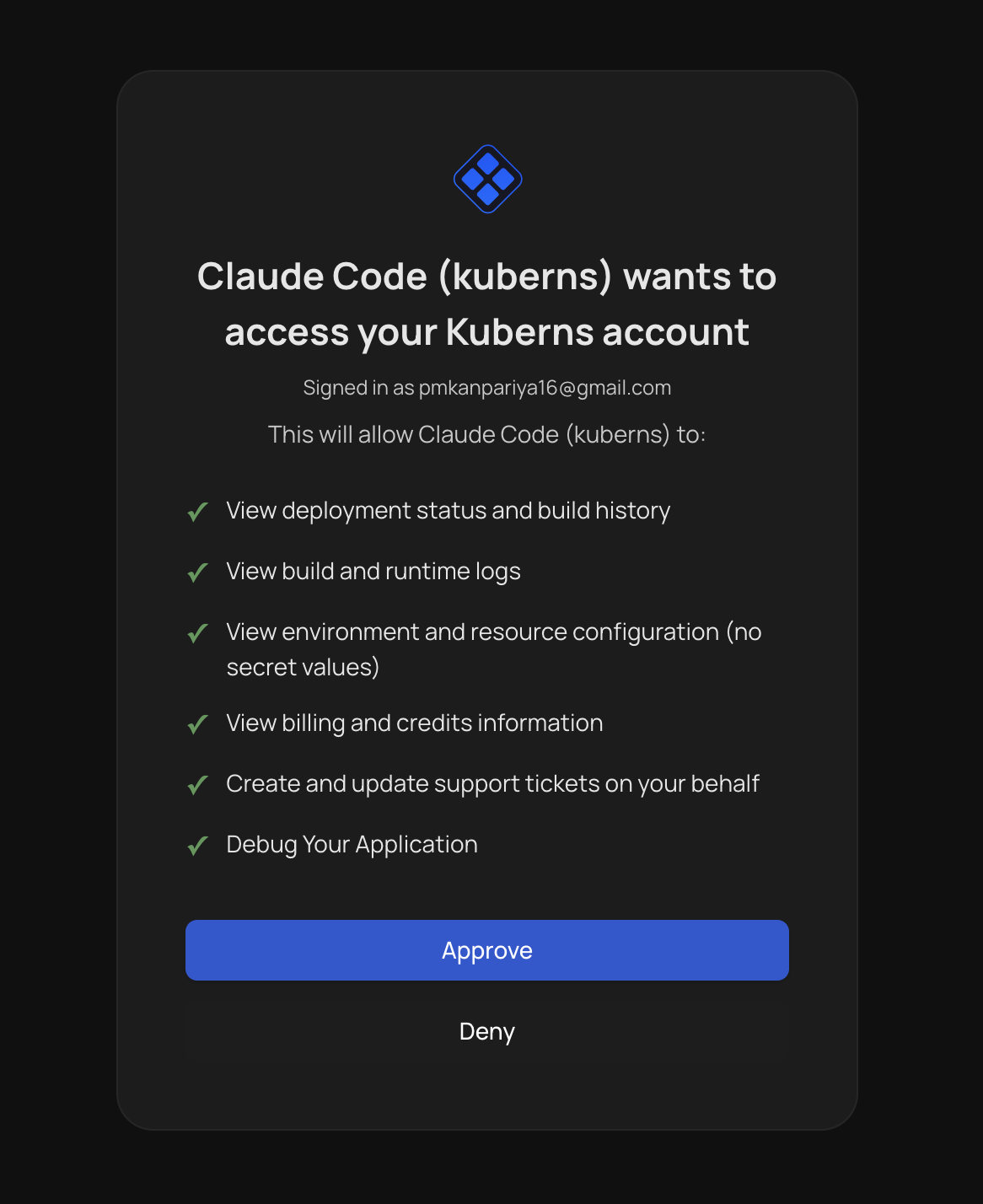
Click Approve. You're redirected back to the terminal, and the connection is complete.
3. Confirm it worked
Ask Claude something simple, like "List my Kuberns projects," to confirm it's live.