
ChatGPT
1. Turn on Developer mode
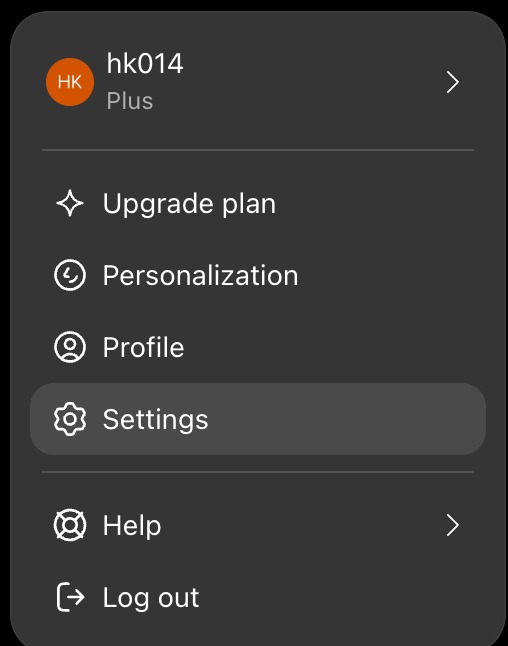
Custom connectors need Developer mode. Open your profile menu → Settings.
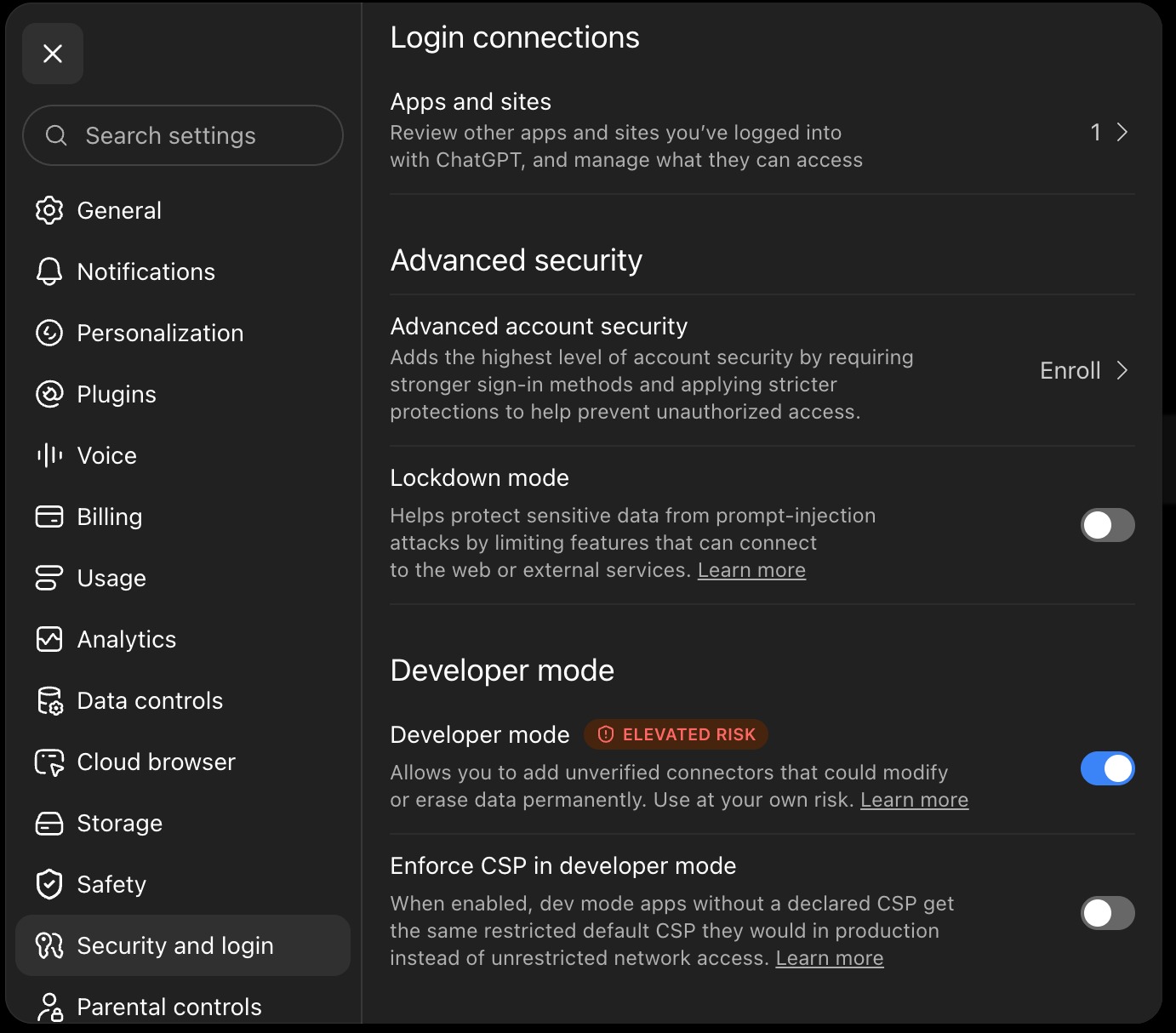
Go to Security and login → Advanced security, then turn on Developer mode.
2. Add a new plugin
Go to Settings → Plugins.
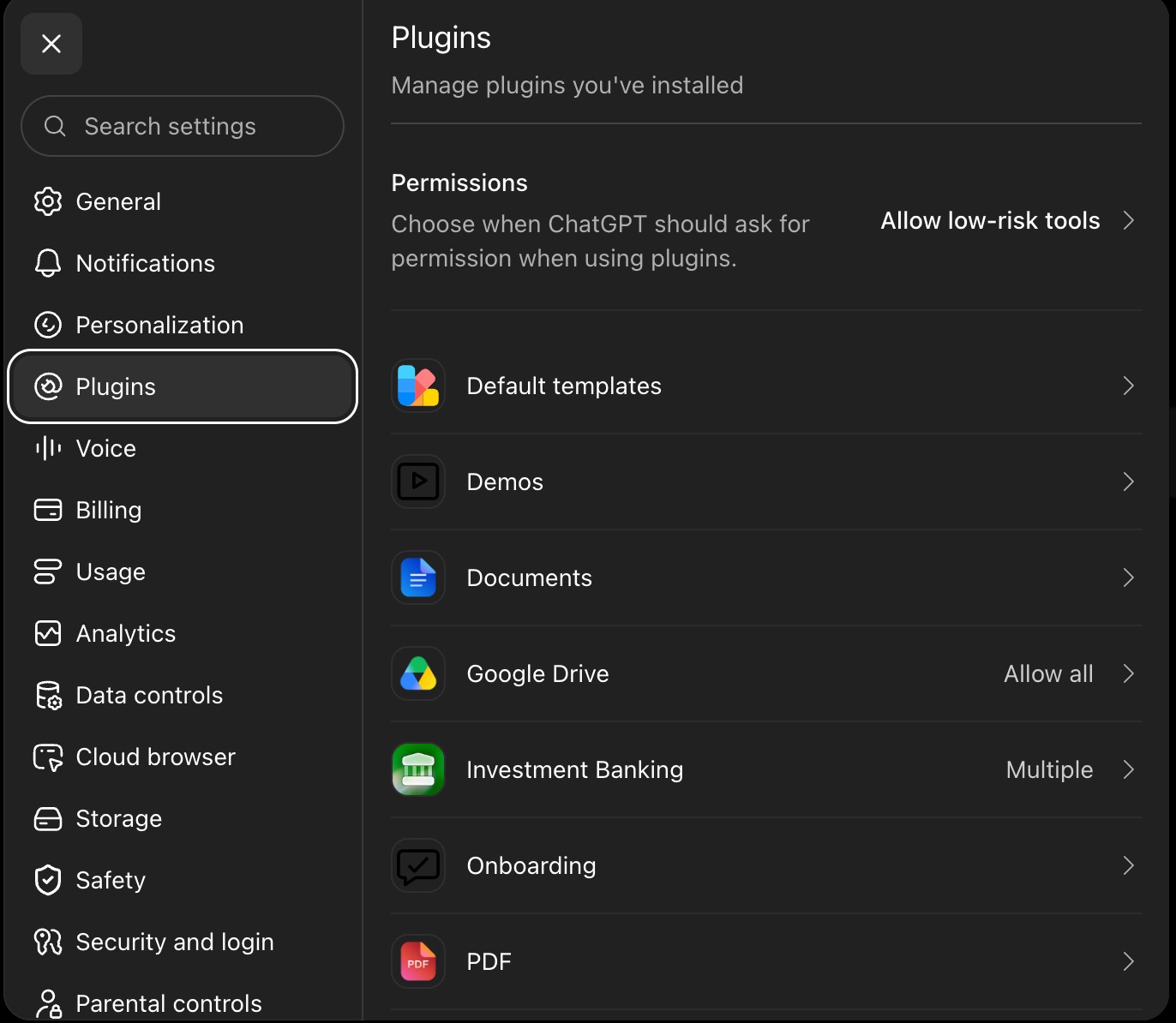
From the Plugins page, click + to add a new one.

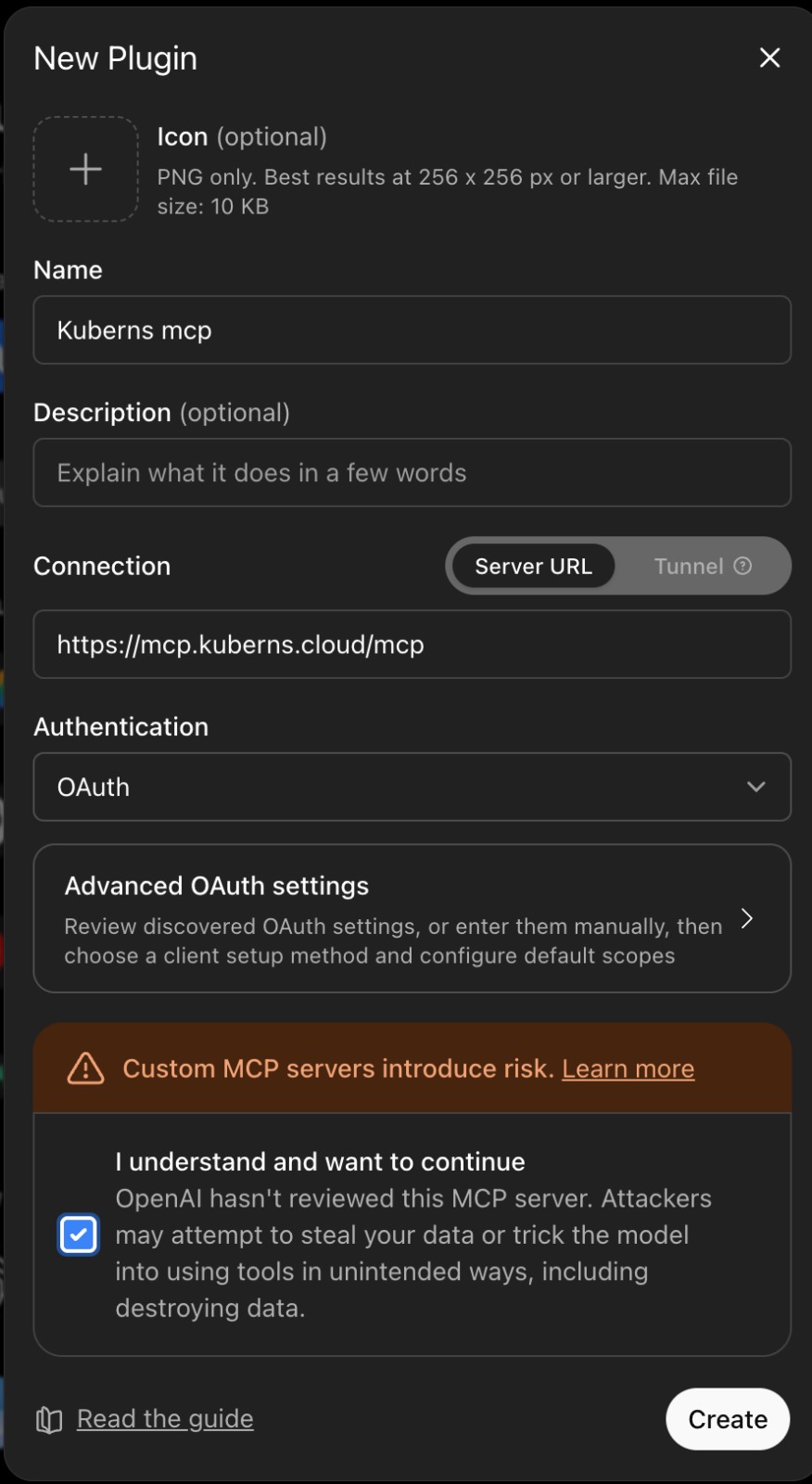
Fill in the form:
- Name:
Kuberns mcp - Connection: Server URL →
https://mcp.kuberns.cloud/mcp - Authentication:
OAuth
Check I understand and want to continue, then click Create.
3. Connect
Back in your plugins list, click Connect on Kuberns.
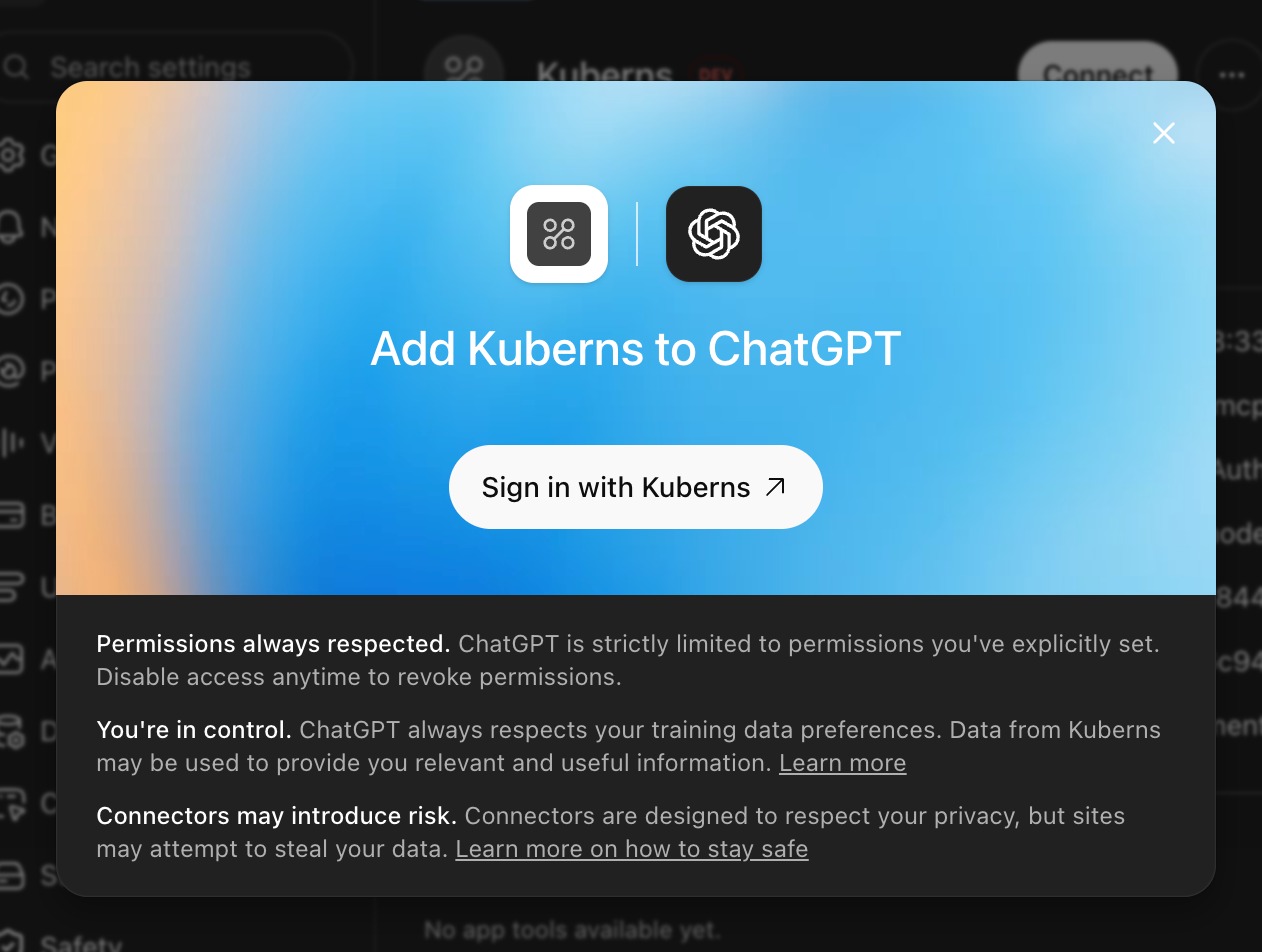
Click Sign in with Kuberns. Your browser opens to Kuberns' consent screen.
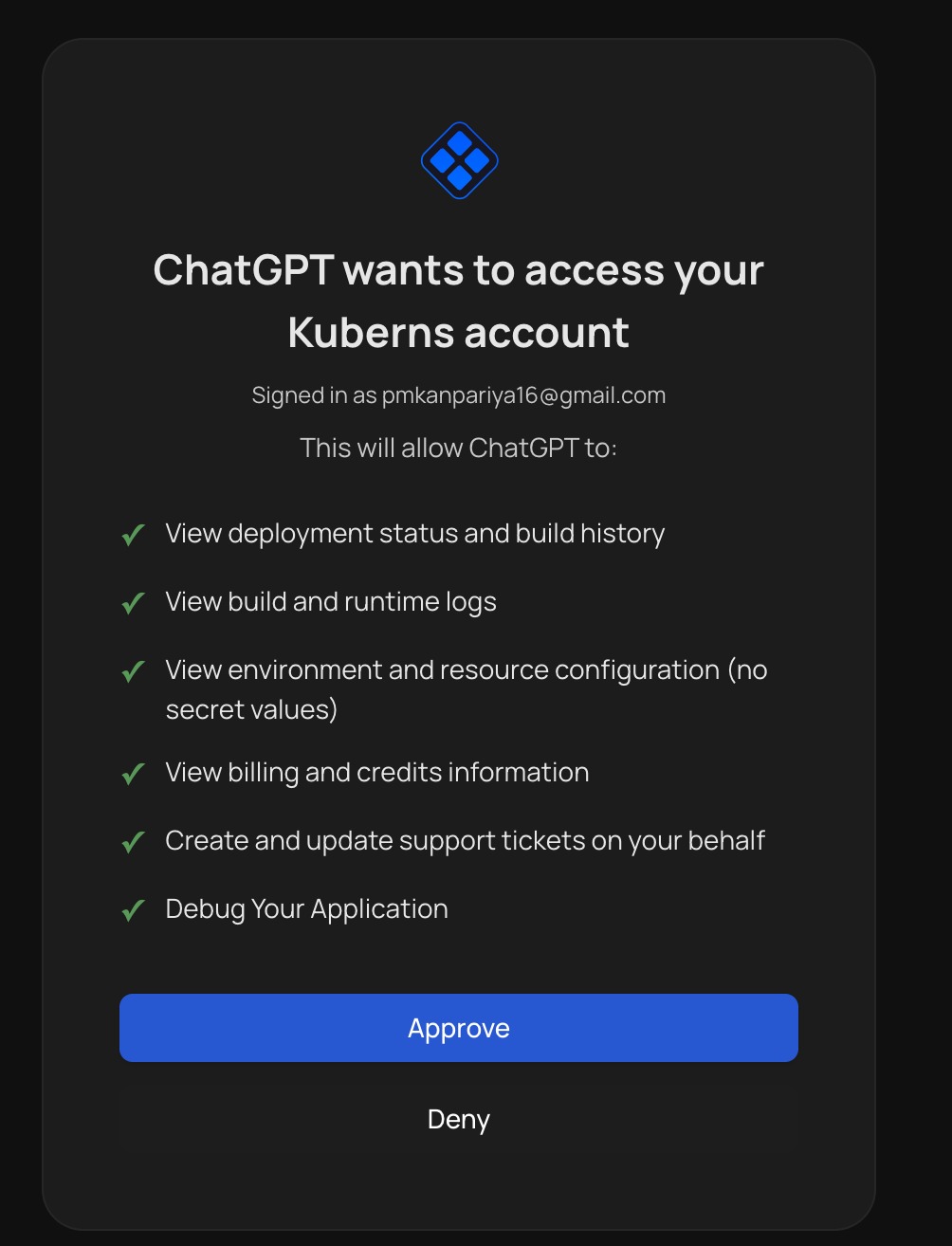
Click Approve. You're redirected back to ChatGPT, and the connection is complete — Developer mode also lets you see every tool Kuberns exposes.
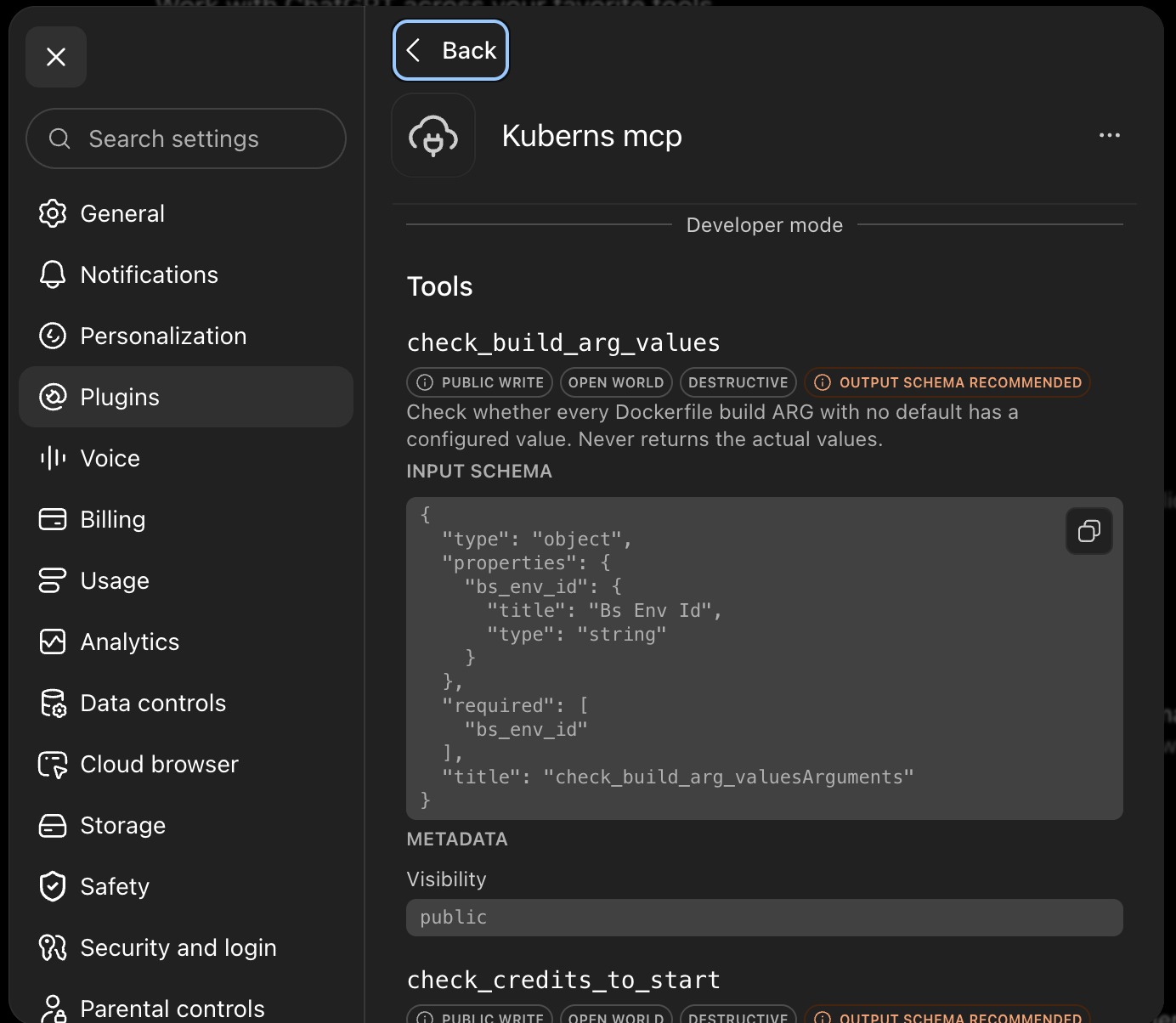
4. Confirm it worked
Ask ChatGPT something simple, like "List my Kuberns projects," to confirm it's live.