
Claude Extensions
These steps use Cursor as the example editor — the Claude Code extension works the same way in VS Code and other VS Code–based editors.
1. Open the MCP servers panel
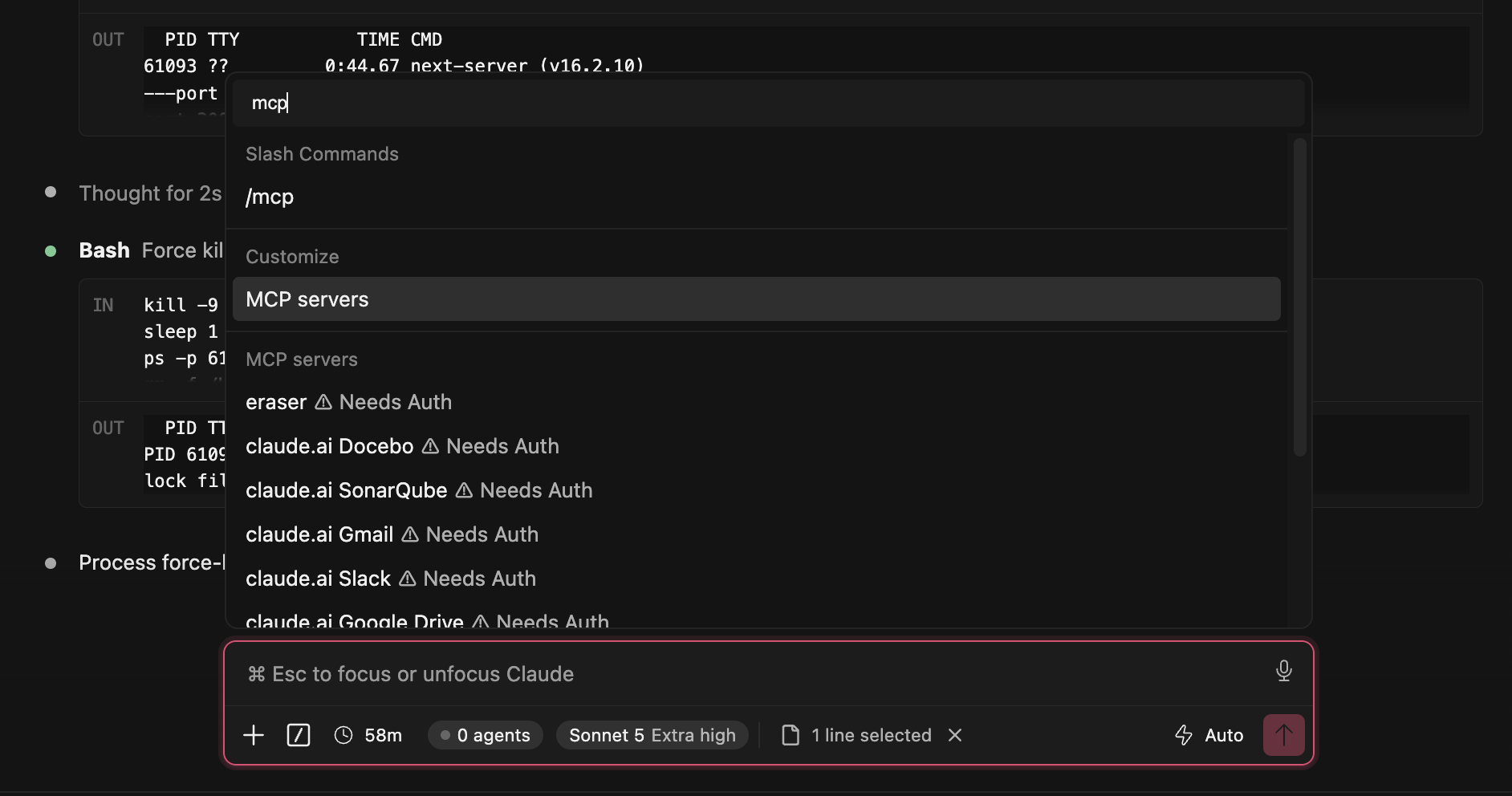
Open the command palette and search for MCP. Under Customize, select MCP servers.
2. Add a server
In the panel that opens, click Add server.

Fill in the form:
- Name:
Kuberns - Transport: HTTP (remote)
- URL:
https://mcp.kuberns.cloud/mcp - Headers: leave empty
- Scope:
Local(orUserif you want it available in every project)
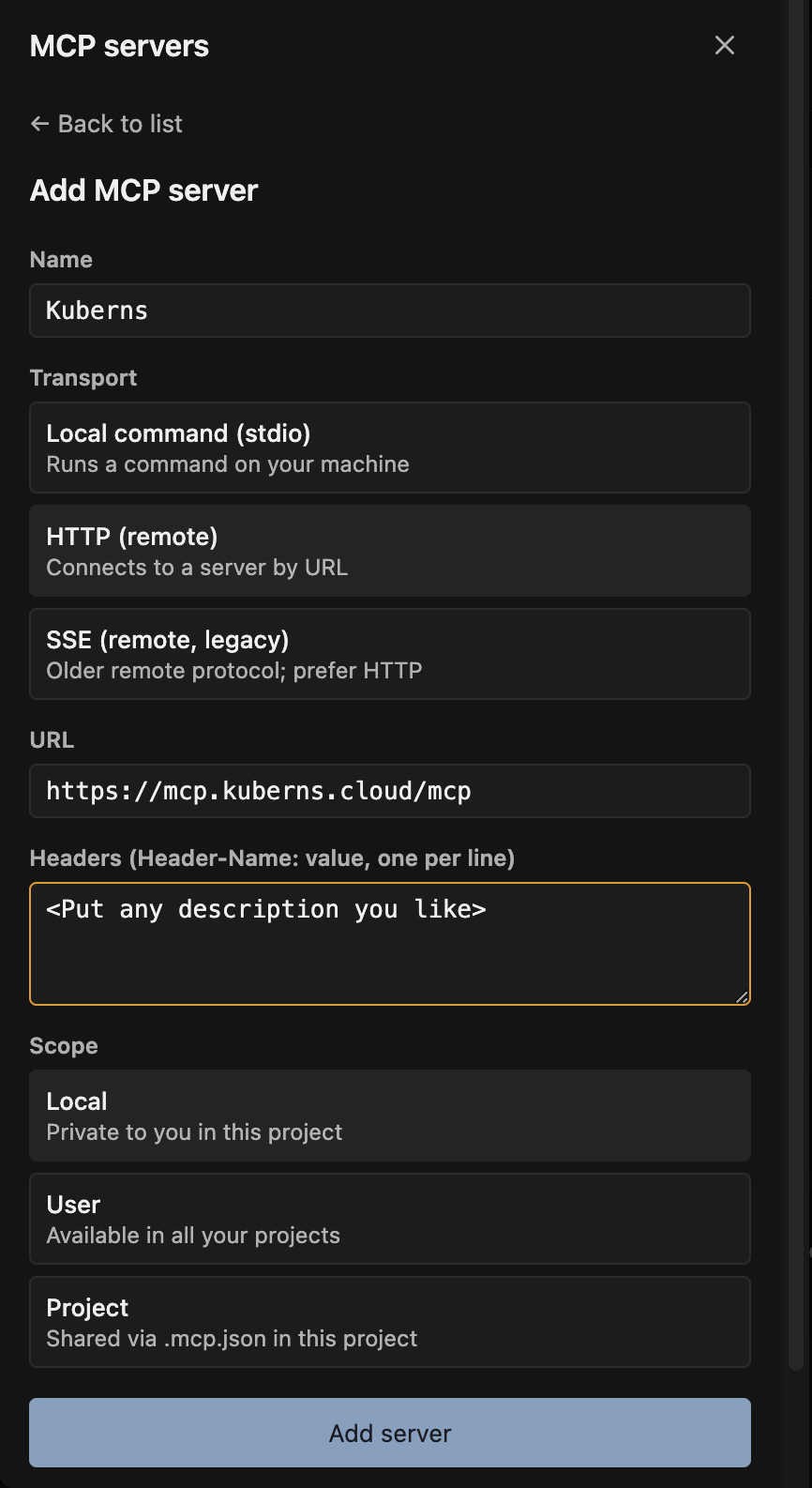
Click Add server.
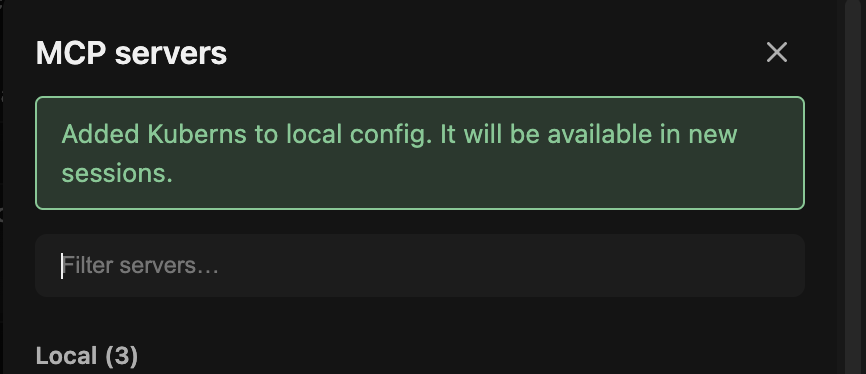
3. Authenticate
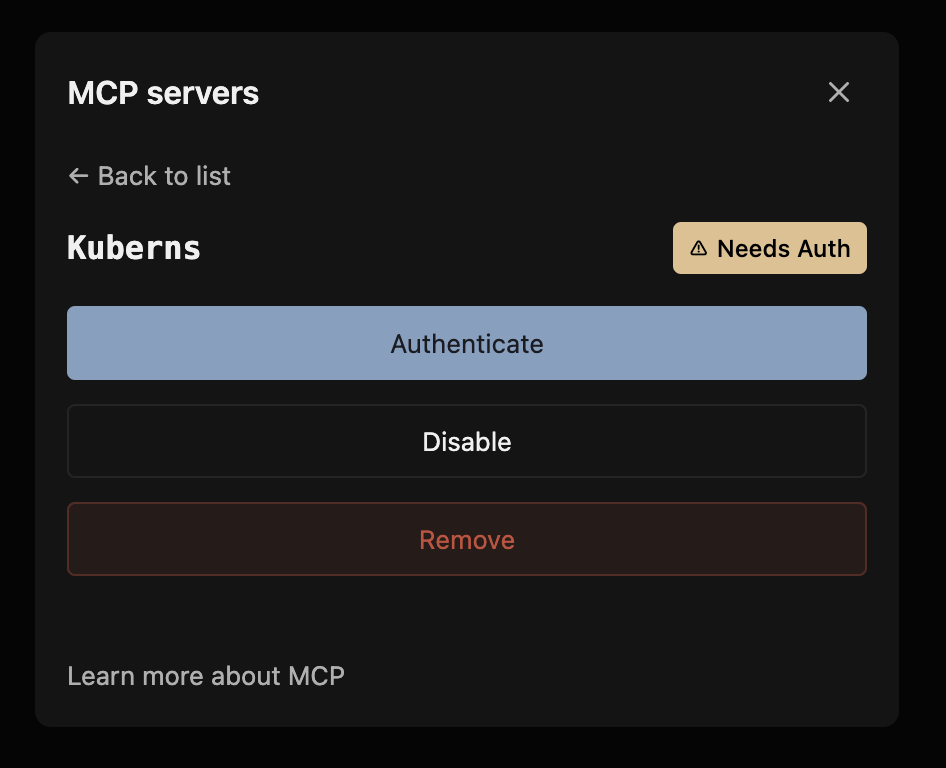
Kuberns now shows up in your server list marked Needs Auth.
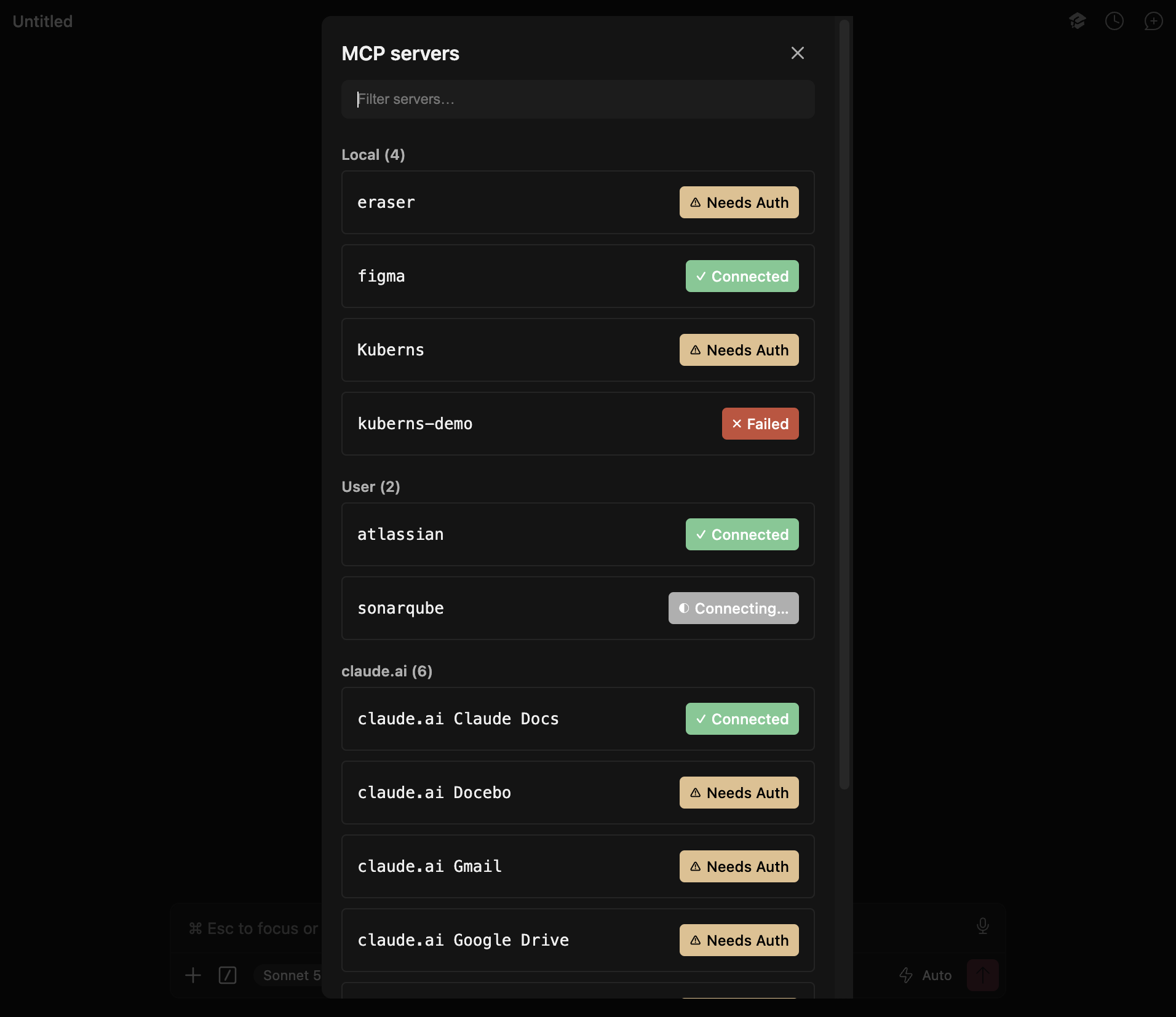
Click into it and select Authenticate.
Your browser opens to Kuberns' consent screen, listing exactly what the connection can do.
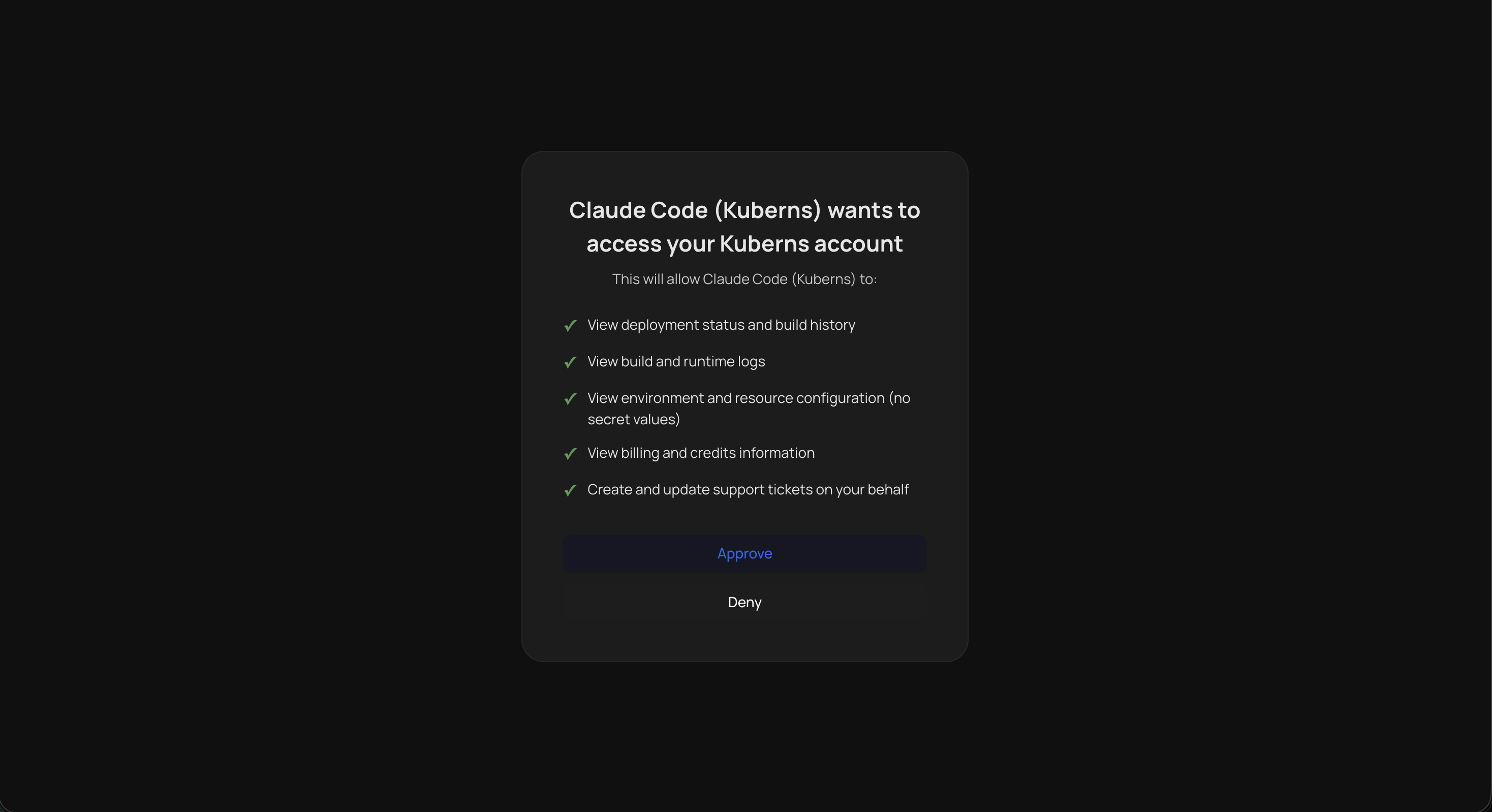
Click Approve.
4. Confirm it worked
Back in the editor, Kuberns shows Connected, with the full list of available tools.

Ask your assistant something simple, like "List my Kuberns projects," to confirm it's live.